
Offline AI Agent: OpenCode + LM Studio
Why
A lot of organizations are still reluctant to actively leverage advantages AI can provide (see “State of AI in Business 2025”). It happens for many reasons, and simple unwillingness to adopt new tools is often at the top of the list.
At the same time it gets more and more obvious, that software development is changing, and we have a lot of signs yelling about it. The term "AI driven development" is not a fancy word anymore, but methodology from the largest enterprises, such as Amazon and Microsoft
If you cannot use online AI tools for any reason, an offline AI assistant may still be an option for you.
What
Let’s keep it clear: running modern LLMs is not something a regular developer machine excels at, and you should not expect them to work fast. With an M4 Pro and 48 GB of memory, I managed to run 24–30B models with a 32k context window, and each prompt took more than one minute. You should not expect that with local models you can freely experiment with different approaches, try multiple prompts, revert, and start again. Even for simple tasks, an agent will call several tools and make a few reasoning steps; something a premium cloud model would finish in seconds may take 10 minutes locally.
Due to context window limits, you also cannot expect your agent to handle sophisticated multi‑file refactoring tasks. Of course, if you are a happy owner of a Mac Studio, the experience will likely be different — you can run models at full capacity and increase the context window. Unfortunately, for most developers, the scope of possible tasks is narrower.
What can you do with a local LLM?
- write unit tests for individual files, assuming you have a well‑defined
AGENTS.mdwith all rules - write simple functionality if you provide clear requirements and proper context
- ask for code review for a few files
- in general, offload simple routine tasks that require “natural language” attention, and invest the saved time in something more valuable—for example, learning how to work with “serious” models and agents
How
I found combination of OpenCode and LM Studio the best. In comparison with OpenHands CLI, OpenCode has much richer CLI which resembles Codex CLI and Claude Code. When I tried to use OpenCode with Ollama, I came across very unpleasant issue ("#4428 Why is opencode not working with local llms via Ollama?"), at the same time LM Studio is now free for use at work.
Step 1. Install OpenCode
OpenCode can be installed in very different ways, I'll refer to the official documentation
As for me, I installed via brew:
brew install opencodeStep 2. Install and configure LM Studio.
Download LM studio from the official website.
After the installation, run the application. You will be asked about your role (of course, we select "Developer"). You can skip downloading the first model, because most probably we want something different rather than a suggested one.
Particularly, we are going to download mistralai/devstral-small-2507 which is explicitly trained for tools usage and agentic tasks. This model shows a kind of excellence (if we speak of models which you can run locally, of course). And it has Apache 2.0 license, what is important for us as well, of course.
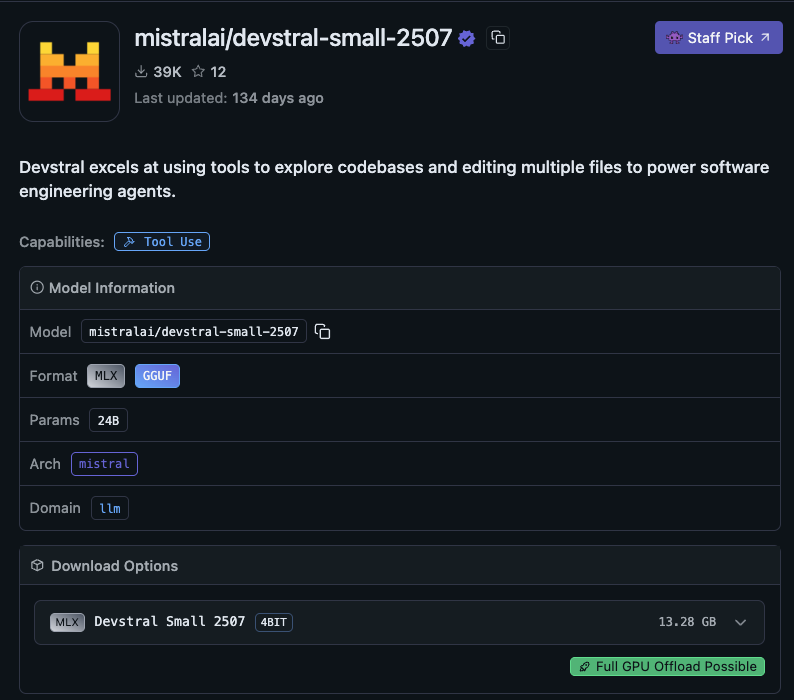
For each model there are different quantizations for downloading. You can read about quantization somewhere else, for example, in the article on HuggingFace. If you are Apple Silicon user, 4bit MLX is ideal for small local models.
Step 3. Run the model
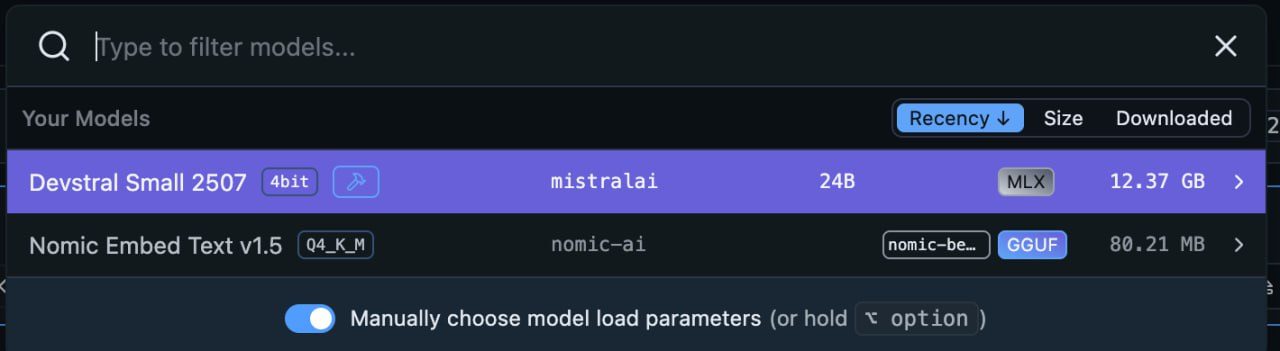
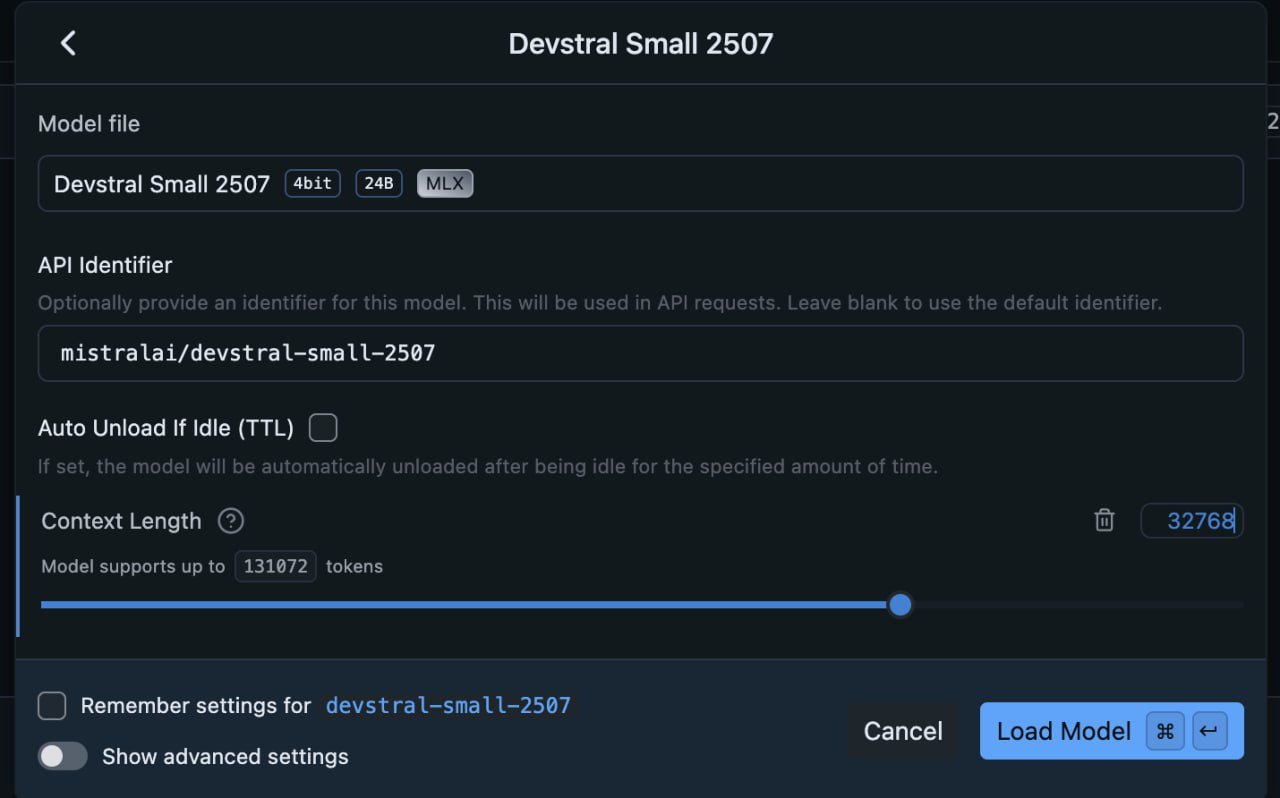
Agentic tasks are very demanding to the context size; if you run your model with default parameters, most probably it won’t work. Set the toggle “Manually choose model load parameters” and click “Devstral Small 2507”.
Here you have to increase the default context. Usually in guides the recommended size is 32768. I tried smaller, but OpenCode rejects to work. We should keep in mind, that when working with agentic systems, context is everything, and you will have to add your files, AGENT.md, additional prompts, tools… It all has the price. So we do:
Step 4. Run lms server
I don’t know why, but cost me some time and pain to figure out that LM Studio does not run HTTP server by default. You have to do it manually:
lms server startYou should see the message “Success! Server is now running on port 1234”.
Step 5. Configure OpenCode
Maybe not right away, but you will need to read the official documentation about opencode configuration. It contains a lot of interesting things and allows you, for example, to create your own agents with predefined prompts.
OpenCode supports JSON and JSONC (JSON with comments) formats. It keeps its configuration in MacOS under the ~/.config/opencode folder. There we create a file opencode.jsonc, here is mine, configured exactly for our model:
{
  "$schema": "https://opencode.ai/config.json",
  "theme": "opencode",
  "autoupdate": true,

  "model": "lms/mistralai/devstral-small-2507",

  "provider": {
    // LM Studio
    "lms": {
      "npm": "@ai-sdk/openai-compatible",
      "name": "lms",

      "options": {
        // we run it with `lms server start`, remember?
        "baseURL": "http://localhost:1234/v1"
      },

      "models": {
        // our model
        "mistralai/devstral-small-2507": {
          "name": "mistralai/devstral-small-2507",
          "reasoning": true,
          // this is super important!
          "tool_call": true
        }
      }
    }
  }
}
Step 6. Run OpenCode
Open the project folder where you want to work and run the opencode:
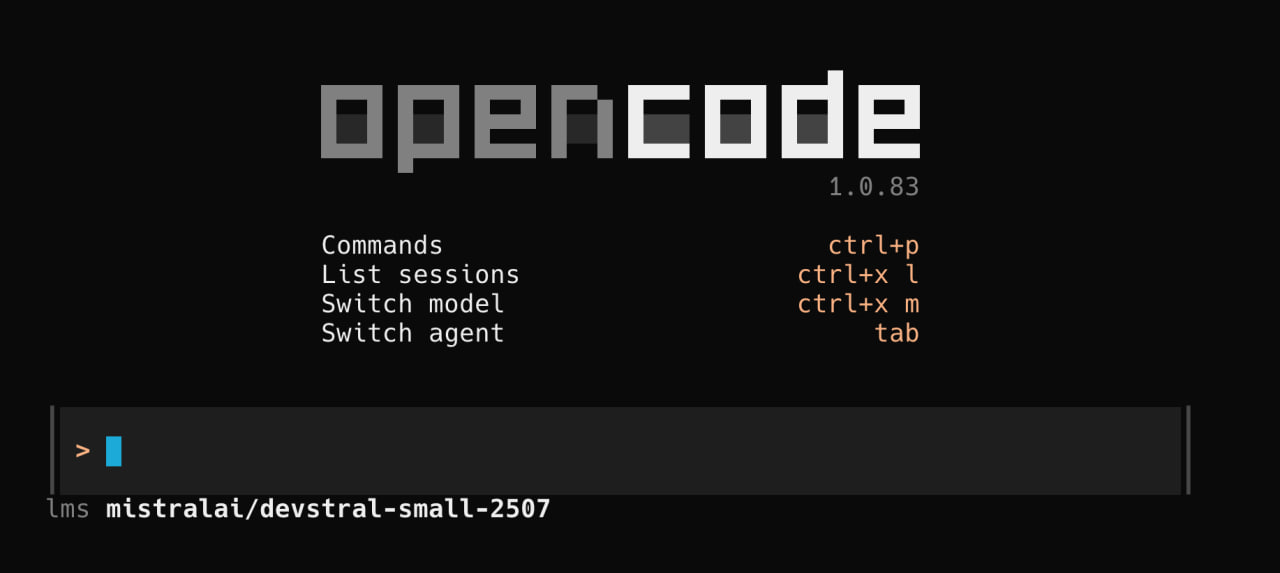
opencodeMake sure you run exactly the model you need:
From here you can start working. There are some documents you might want to get familiar, for example TUI Reference which contains some important commands such as /init and /clear. The CLI Reference will help you to understand the options which you can pass to opencode right before start.
You can read and comment this article at HashNode